ทีละ
ขั้นตอน.
คำแนะนำฉบับสมบูรณ์ของขั้นตอนทั้งหมด — ตั้งแต่ใบแจ้งหนี้จนถึง PDF สำเร็จรูป ไม่จำเป็นต้องมีความรู้เบื้องต้น
คู่มือ
ภาพรวม
Tullklar ช่วยคุณสร้างใบขนสินค้าขาเข้า (ใบขนศุลกากร) สำหรับสินค้าที่คุณนำเข้ามายังสวีเดนจากประเทศนอกสหภาพยุโรป คุณอัปโหลดใบแจ้งหนี้ ระบบจะอ่านข้อมูล แนะนำรหัส HS และคำนวณอากรและภาษีมูลค่าเพิ่ม จากนั้นคุณจะได้รับ PDF ที่กรอกข้อมูลแล้วเพื่อยื่นต่อ Tullverket
สิ่งที่คุณต้องมีคือใบแจ้งหนี้หรือเอกสารการค้าจากผู้จัดจำหน่ายของคุณ บริการจะจัดการส่วนที่เหลือ — แต่คุณจะอนุมัติทุกขั้นตอนก่อนที่เราจะดำเนินการต่อ
เวลาที่ใช้
5–15 นาที ขึ้นอยู่กับจำนวนรายการสินค้า
สิ่งที่คุณต้องมี
ใบแจ้งหนี้ (PDF, รูปภาพ หรือข้อความ)
ผลลัพธ์
ใบขนศุลกากรที่กรอกข้อมูลแล้วในรูปแบบ PDF
อัปโหลดใบแจ้งหนี้
1.1 เริ่มต้นที่หน้าแรก
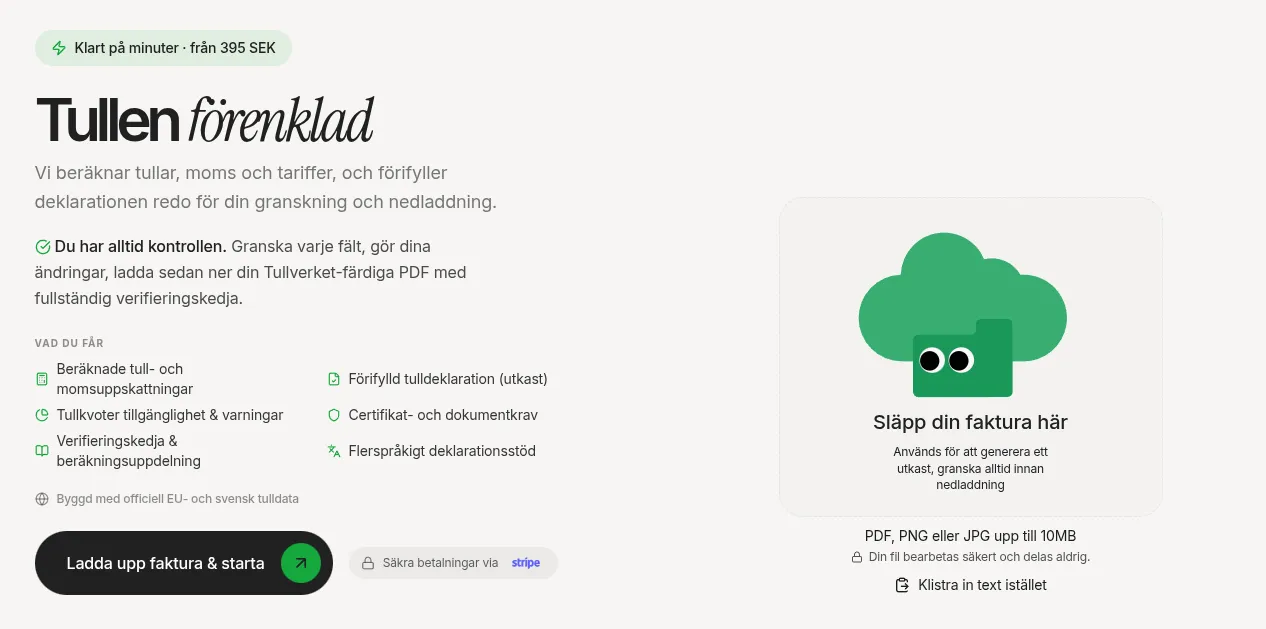
ที่หน้าแรกคุณจะพบพื้นที่อัปโหลดขนาดใหญ่ (dropzone) และปุ่ม **อัปโหลดใบแจ้งหนี้ & เริ่มต้น** นี่คือวิธีที่ง่ายที่สุดในการเริ่มต้น — ลากใบแจ้งหนี้ไปที่ dropzone หรือคลิกที่ปุ่ม
1.2 ทางเลือก: ผ่านปุ่ม
คุณยังสามารถคลิกปุ่ม **อัปโหลดใบแจ้งหนี้ & เริ่มต้น** ทางด้านซ้ายของหน้าแรก ซึ่งจะพาคุณไปยังหน้าอัปโหลดโดยตรง
1.3 ลากและวาง
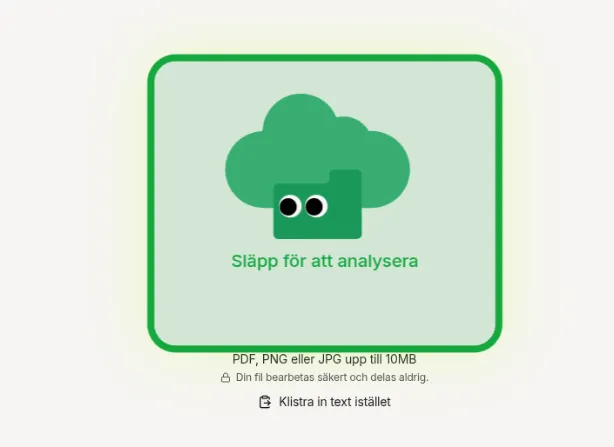
ลากไฟล์จากคอมพิวเตอร์ของคุณไปที่ dropzone เมื่อคุณถือไฟล์เหนือพื้นที่นั้น มันจะเรืองแสงสีเขียวเพื่อแสดงว่าพร้อมรับไฟล์แล้ว
1.4 คลิกเพื่อเลือกไฟล์
ชอบคลิกมากกว่า? กดที่ dropzone แล้วตัวเลือกไฟล์จะเปิดขึ้นให้คุณเรียกดูเอกสารของคุณ
1.5 วางข้อความ
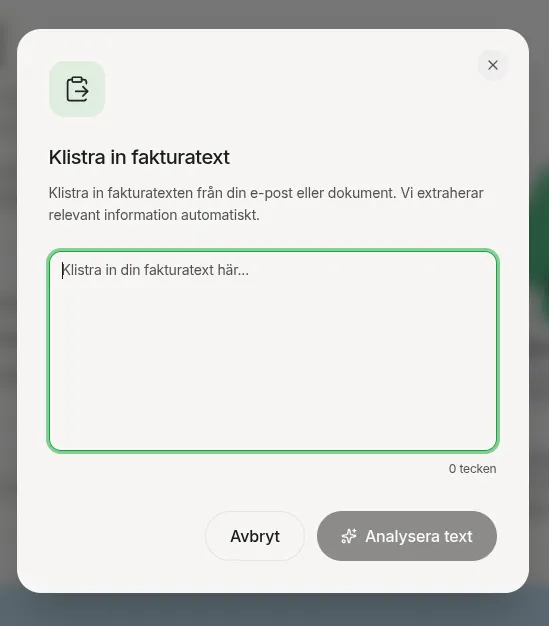
มีข้อมูลใบแจ้งหนี้เป็นข้อความ (เช่น คัดลอกมาจากอีเมล)? คลิก "วางข้อความแทน" แล้วพื้นที่ข้อความจะเปิดขึ้นให้คุณวางเนื้อหา
1.6 รูปแบบไฟล์
บริการรองรับ PDF, PNG, JPG และ TXT ขนาดไฟล์สูงสุดคือ 10 MB ตรวจสอบให้แน่ใจว่าใบแจ้งหนี้อ่านได้ชัดเจน — ภาพที่เบลอจะให้ผลลัพธ์ที่แย่กว่า
การวิเคราะห์อัตโนมัติ
2.1 สามขั้นตอน
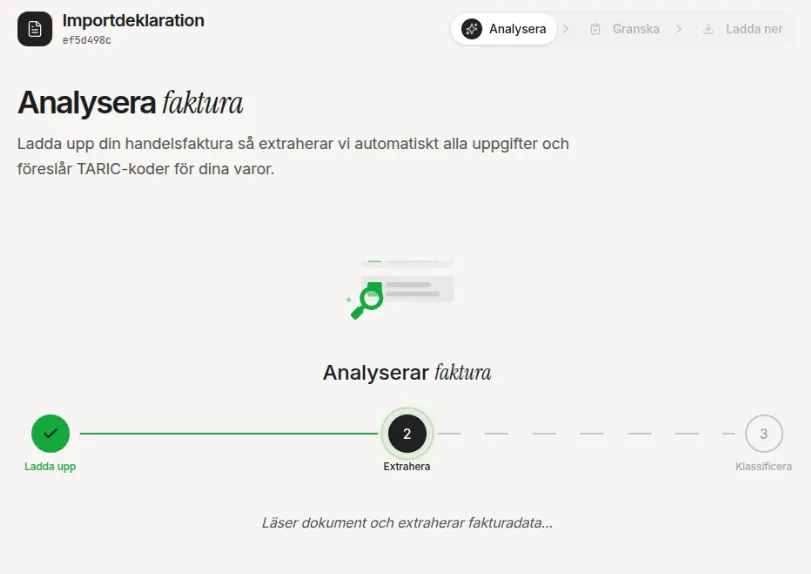
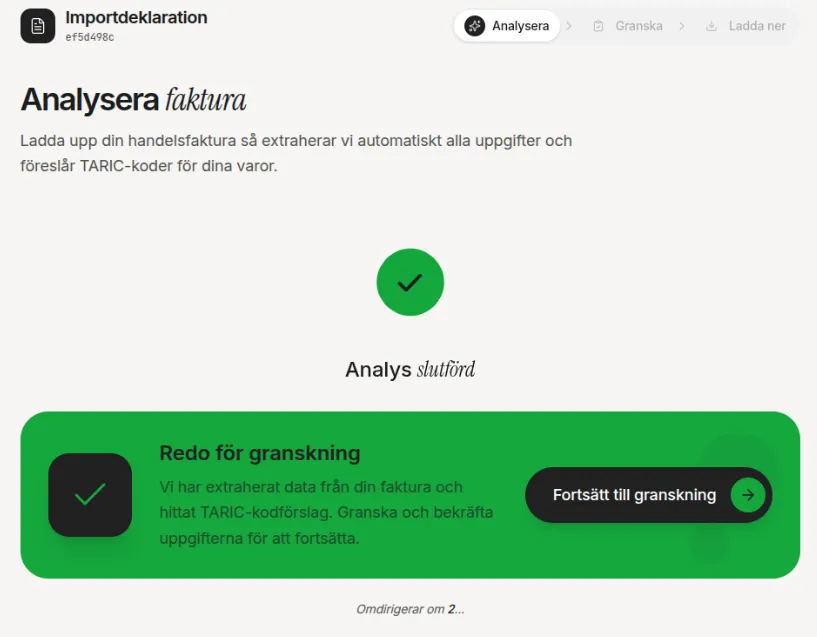
การวิเคราะห์ทำงานในสามขั้นตอน: ขั้นแรกใบแจ้งหนี้จะถูกอัปโหลด จากนั้นระบบจะดึงข้อมูลคู่ค้าและรายการสินค้าโดยอัตโนมัติ และสุดท้ายจะแนะนำรหัส HS (รหัสสินค้า) สำหรับแต่ละรายการ คุณจะเห็นตัวบ่งชี้ที่ชัดเจนแสดงว่าคุณอยู่ที่ขั้นตอนไหนของกระบวนการ
2.2 เมื่อการวิเคราะห์เสร็จสิ้น
เมื่อทั้งสามขั้นตอนเสร็จสิ้น คุณจะถูกนำไปยังหน้าตรวจสอบโดยอัตโนมัติ หากคุณออกจากหน้านี้ระหว่างการวิเคราะห์ คุณสามารถกลับมาได้เสมอ — ใบขนสินค้าของคุณถูกบันทึกไว้แล้ว
ตรวจสอบคู่ค้า
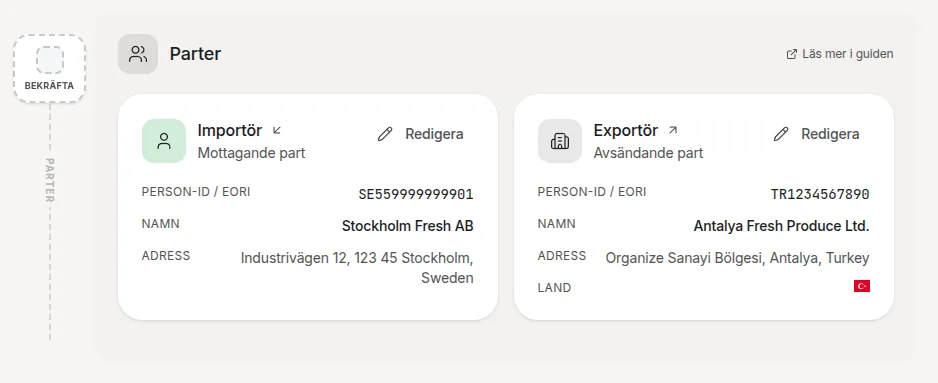
3.1 ผู้นำเข้าและผู้ส่งออก
ระบบได้ระบุผู้นำเข้า (ผู้รับในสวีเดน) และผู้ส่งออก (ผู้ส่งจากต่างประเทศ) จากใบแจ้งหนี้ของคุณ คุณจะเห็นเป็นการ์ดสองใบพร้อมชื่อ ที่อยู่ เลขทะเบียนองค์กร/EORI และข้อมูลติดต่อ ด้านบนคุณจะเห็นตัวบ่งชี้ความคืบหน้าแสดงขั้นตอนที่คุณดำเนินการเสร็จแล้ว

3.2 แก้ไขข้อมูล
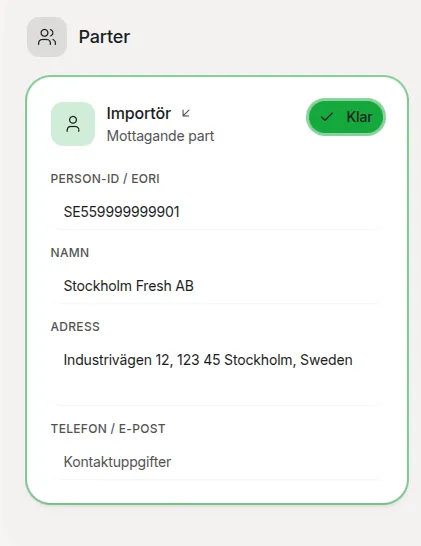
คลิก **แก้ไข** บนการ์ดใดก็ได้เพื่อเปลี่ยนข้อมูล คุณสามารถแก้ไขชื่อ ที่อยู่ เลขทะเบียนองค์กร ประเทศ และข้อมูลติดต่อ การดึงข้อมูลอัตโนมัติพยายามอย่างดีที่สุด แต่คุณเป็นผู้รับผิดชอบในการตรวจสอบว่าข้อมูลถูกต้อง
3.3 ยืนยัน
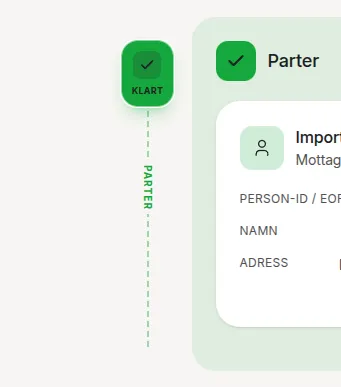
ข้างแต่ละส่วนจะมีตัวบ่งชี้การยืนยันแบบลอย ติ๊กเครื่องหมายเพื่ออนุมัติส่วนนั้นและดำเนินการต่อ มันแสดงว่าคุณได้ตรวจสอบและอนุมัติข้อมูลคู่ค้าแล้ว
วิธีการขนส่ง (ไม่บังคับ)
4.1 เลือกวิธีการขนส่ง
เลือกวิธีที่สินค้าถูกขนส่งมายังสวีเดน: ทางทะเล ทางรถไฟ ทางถนน ทางอากาศ หรือทางไปรษณีย์ หากระบบพบเบาะแสในใบแจ้งหนี้ (เช่น หมายเลขเที่ยวบินหรือหมายเลขตู้คอนเทนเนอร์) ตัวเลือกที่ถูกต้องจะถูกเลือกไว้ล่วงหน้า คุณสามารถเปลี่ยนหรือข้ามขั้นตอนนี้ได้
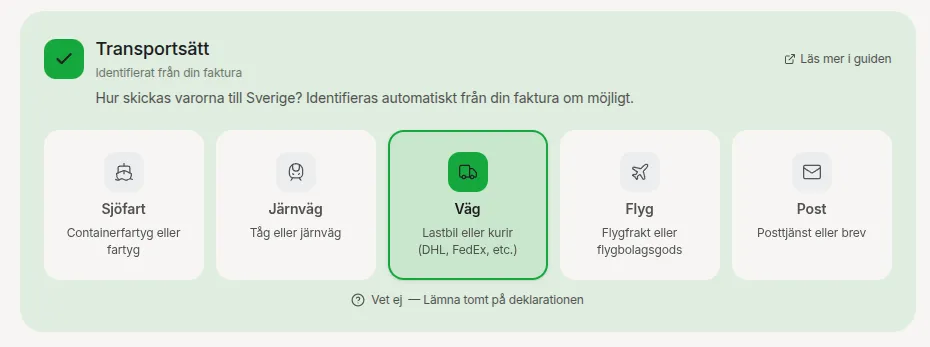
4.2 ชื่อเรือ / ยานพาหนะ (ไม่บังคับ)
หากคุณทราบชื่อเรือ หมายเลขเที่ยวบิน หรือข้อมูลระบุตัวตนของยานพาหนะอื่น คุณสามารถกรอกได้ที่นี่ ช่องนี้ไม่บังคับ หากระบบพบข้อมูลนี้ในใบแจ้งหนี้จะถูกกรอกไว้แล้ว
รายการสินค้า
5.1 การ์ดสินค้า
สินค้าแต่ละรายการจากใบแจ้งหนี้จะแสดงเป็นการ์ด ในโหมดย่อคุณจะเห็นคำอธิบาย มูลค่า น้ำหนัก ประเทศต้นทาง และรหัส HS ที่แนะนำ
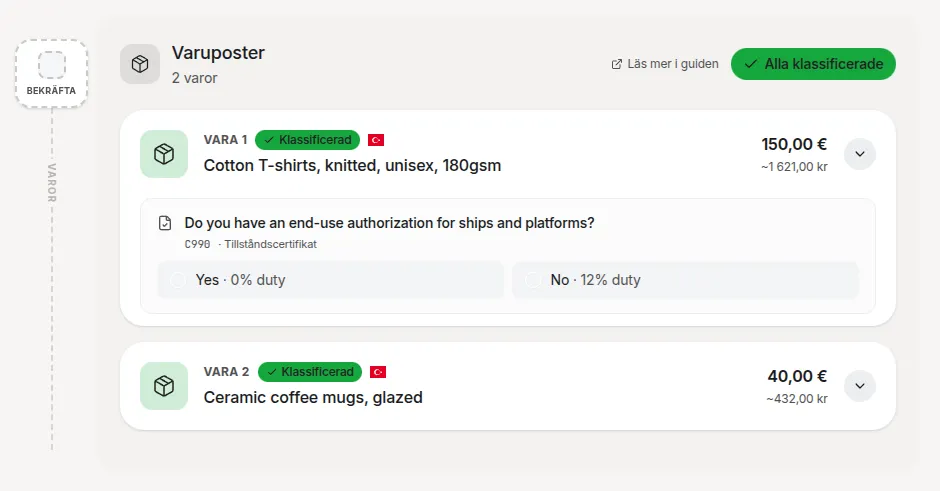
5.2 ขยายการ์ด
คลิกที่การ์ดเพื่อขยาย ตอนนี้คุณจะเห็นรายละเอียดทั้งหมดรวมถึงรหัส HS ที่แนะนำพร้อมคำอธิบาย อัตราอากร และเงื่อนไขต่างๆ
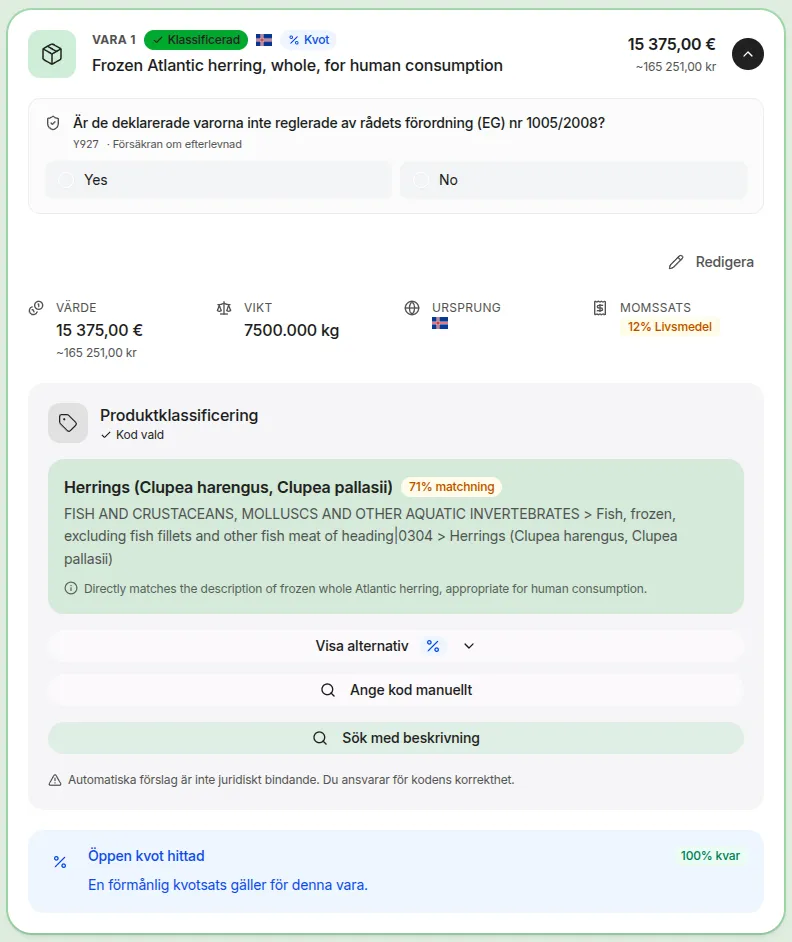
5.3 แก้ไขข้อมูลสินค้า
คุณสามารถเปลี่ยนคำอธิบายสินค้า มูลค่า สกุลเงิน น้ำหนักสุทธิ และประเทศต้นทาง คลิก **แก้ไข** แล้วคลิก **เสร็จสิ้น** เมื่อคุณพอใจ
5.4 การแนะนำรหัส HS
ระบบจะแนะนำรหัส HS หลักและทางเลือกสูงสุดสามรายการ การแนะนำแต่ละรายการจะแสดงรหัส คำอธิบาย และตัวบ่งชี้ความเชื่อมั่น คลิก **แสดงทางเลือก** เพื่อดูการแนะนำทั้งหมดและเลือกรายการที่เหมาะกับสินค้าของคุณมากที่สุด
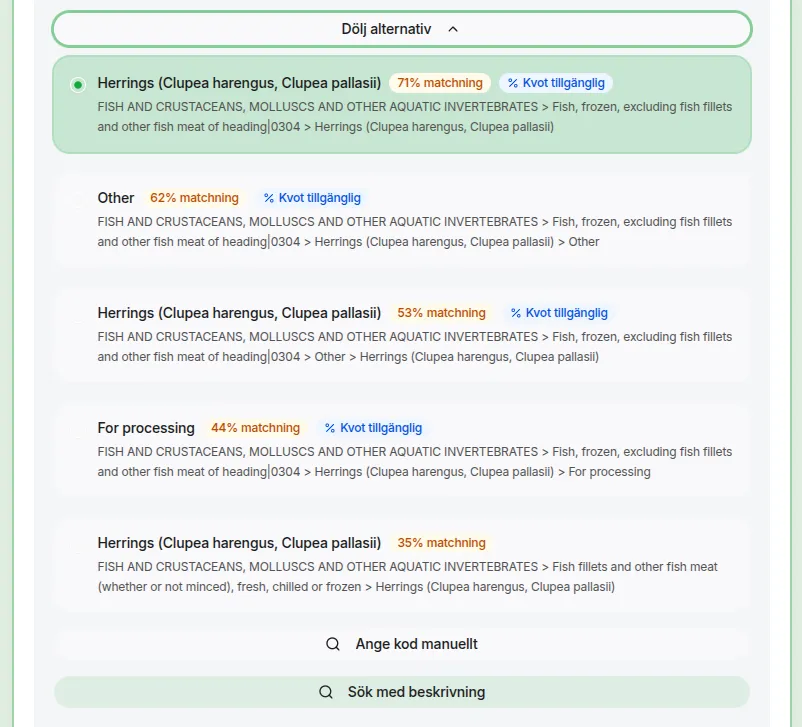
5.5 ป้อนรหัสด้วยตนเอง
ทราบรหัส HS ที่ถูกต้องอยู่แล้ว? คลิก **ป้อนด้วยตนเอง** แล้วพิมพ์รหัสโดยตรง ระบบจะตรวจสอบว่ารหัสนั้นถูกต้อง

5.6 ค้นหาด้วยข้อความอิสระ
ด้วยแผน Handel หรือ Pro คุณสามารถค้นหาด้วยคำอธิบายสินค้าในรูปแบบข้อความอิสระ ระบบจะจับคู่คำอธิบายของคุณกับฐานข้อมูลรหัสสินค้าทั้งหมดและส่งคืนรหัสที่ตรงกันมากที่สุด ในแผนฟรีคุณจะเห็นข้อความแจ้งให้อัปเกรด

5.7 โควตาภาษีศุลกากร
หากมีโควตาอัตราภาษีศุลกากรที่เปิดอยู่สำหรับสินค้าและประเทศต้นทางของคุณ จะแสดงตัวบ่งชี้โควตาบนการ์ดสินค้า โควตาสามารถให้คุณได้อัตราอากรที่ต่ำลง — ระบบจะคำนึงถึงสิ่งนี้ในการคำนวณภาษี

5.8 คำถามเกี่ยวกับเงื่อนไข
รหัส HS บางรายการมีเงื่อนไข — เช่น คุณมีใบอนุญาตบางอย่างหรือไม่ หรือสินค้าเป็นไปตามเกณฑ์เฉพาะหรือไม่ คุณจะได้รับคำถามแบบใช่/ไม่ใช่ คำตอบของคุณจะกำหนดว่าอากรและข้อกำหนดใดที่ใช้บังคับ

5.9 ยืนยันสินค้า
เมื่อคุณตรวจสอบรายการสินค้าทั้งหมดแล้ว ให้ติ๊กตัวบ่งชี้การยืนยันแบบลอยทางด้านซ้าย จากนั้นภาษีและค่าธรรมเนียมจะถูกคำนวณโดยอัตโนมัติ
5.10 องค์ประกอบ Meursing
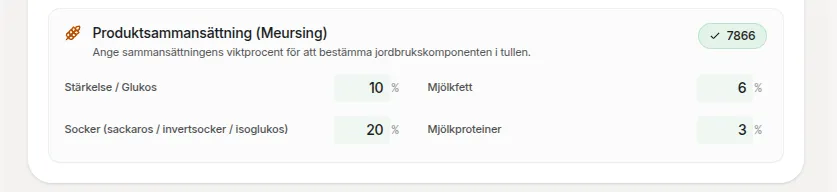
สำหรับสินค้าเกษตรบางประเภท (เช่น บทที่ 17–21) คุณต้องระบุองค์ประกอบของผลิตภัณฑ์เป็นเปอร์เซ็นต์น้ำหนัก: แป้ง/กลูโคส ไขมันนม น้ำตาล และโปรตีนนม ระบบใช้ตาราง Meursing ของ EU เพื่อกำหนดส่วนประกอบทางการเกษตรของอากร — อากรเพิ่มเติมที่ขึ้นอยู่กับส่วนประกอบของสินค้า
5.11 รหัสเพิ่มเติม
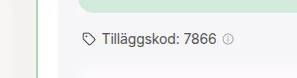
จากองค์ประกอบ ระบบจะคำนวณรหัสเพิ่มเติมสี่หลักโดยอัตโนมัติ รหัสนี้แสดงบนการ์ดสินค้าและจำเป็นในใบขนสินค้าเพื่อกำหนดอัตราอากรเกษตรที่ถูกต้อง
5.12 อากรตอบโต้การทุ่มตลาด
สินค้าบางรายการจากบางประเทศมีอากรตอบโต้การทุ่มตลาดที่แตกต่างกันตามบริษัทผู้ส่งออก เมื่อตรวจพบ จะปรากฏตัวเลือกให้คุณเลือกรหัสบริษัท — แต่ละรหัสมีอัตราอากรของตัวเอง หากไม่แน่ใจ จะใช้อัตราเริ่มต้น "Other" (B999)

5.13 ประเภทธุรกรรม
เลือกประเภทธุรกรรม ที่พบบ่อยที่สุดคือ "1 — ซื้อ" สำหรับการซื้อปกติ ตัวเลือกอื่นได้แก่ การคืนสินค้า ของขวัญ การซ่อมแซม เป็นต้น การเลือกนี้มีผลต่อช่อง "ประเภทธุรกรรม" ในใบขนสินค้า
การจดทะเบียนภาษีมูลค่าเพิ่ม
6.1 ใช่หรือไม่ใช่
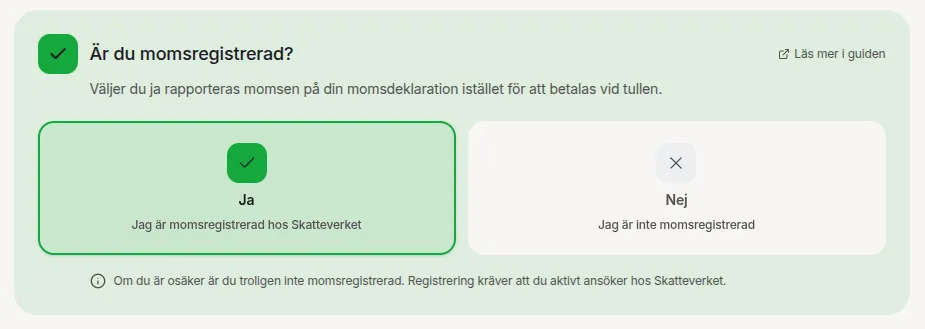
ระบุว่าคุณจดทะเบียนภาษีมูลค่าเพิ่มในสวีเดนหรือไม่ สิ่งนี้ส่งผลต่อวิธีจัดการภาษีมูลค่าเพิ่มในใบขนสินค้า หากคุณจดทะเบียนภาษีมูลค่าเพิ่ม ภาษีมูลค่าเพิ่มนำเข้าจะรายงานในแบบแสดงรายการภาษีมูลค่าเพิ่มแทนที่จะชำระโดยตรงต่อ Tullverket
การคำนวณภาษี
7.1 รายละเอียดต่อรายการ
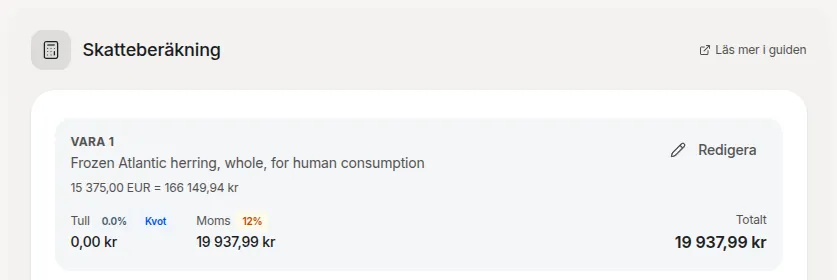
สินค้าแต่ละรายการจะแสดงพร้อมอากรที่คำนวณแล้ว ภาษีมูลค่าเพิ่ม และยอดรวม คุณจะเห็นอัตราอากร มูลค่าศุลกากร และอัตราภาษีมูลค่าเพิ่ม หากมีการใช้โควตา จำนวนเงินที่ประหยัดได้จะแสดงขึ้น
7.2 สรุปยอดรวม
ด้านล่างคุณจะเห็นสรุป: อากรรวม ภาษีมูลค่าเพิ่มรวม มูลค่าศุลกากร และยอดรวมที่ต้องชำระ หากคุณจดทะเบียนภาษีมูลค่าเพิ่ม ภาษีมูลค่าเพิ่มจะแสดงแยกต่างหากเป็น "รายงานในแบบแสดงรายการภาษีมูลค่าเพิ่ม"
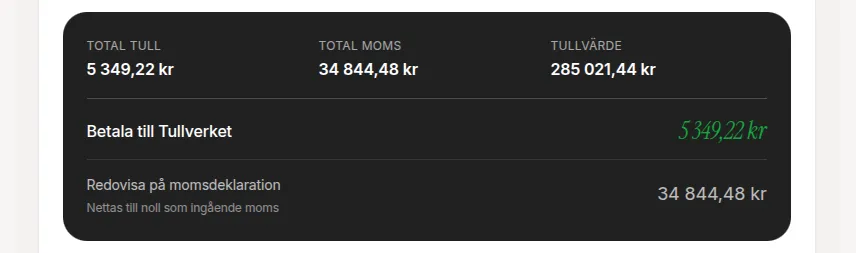
7.3 การปรับด้วยตนเอง การประหยัดจากโควตา de minimis
คุณสามารถปรับอัตราอากรและอัตราภาษีมูลค่าเพิ่มด้วยตนเอง การประหยัดจากโควตาจะแสดงอย่างชัดเจน หากอากรต่ำกว่า 150 SEK (de minimis) Tullverket อาจเลือกที่จะไม่เรียกเก็บ — สิ่งนี้จะแสดงเป็นกล่องข้อมูล
ภาษีสรรพสามิต
8.1 ภาษีพลังงาน ภาษีคาร์บอนไดออกไซด์
สินค้าบางประเภท โดยเฉพาะเชื้อเพลิงและผลิตภัณฑ์ปิโตรเลียม อยู่ภายใต้ภาษีสรรพสามิตของสวีเดน วางเมาส์เหนือรหัสเพื่อดูชื่อภาษี

วิธีการชำระเงิน
9.1 สองตัวเลือก
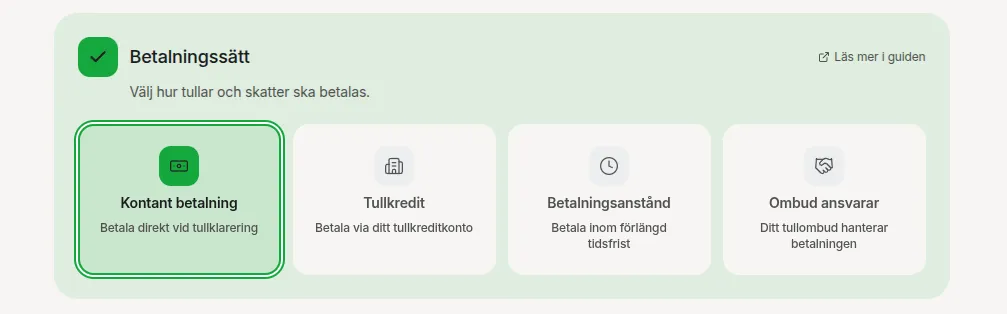
เลือกวิธีชำระอากรและภาษี: ชำระสด (A) หรือชำระแบบเลื่อนกำหนด (E) การชำระสดเป็นค่าเริ่มต้น การชำระแบบเลื่อนกำหนดต้องมีใบอนุญาตจาก Tullverket
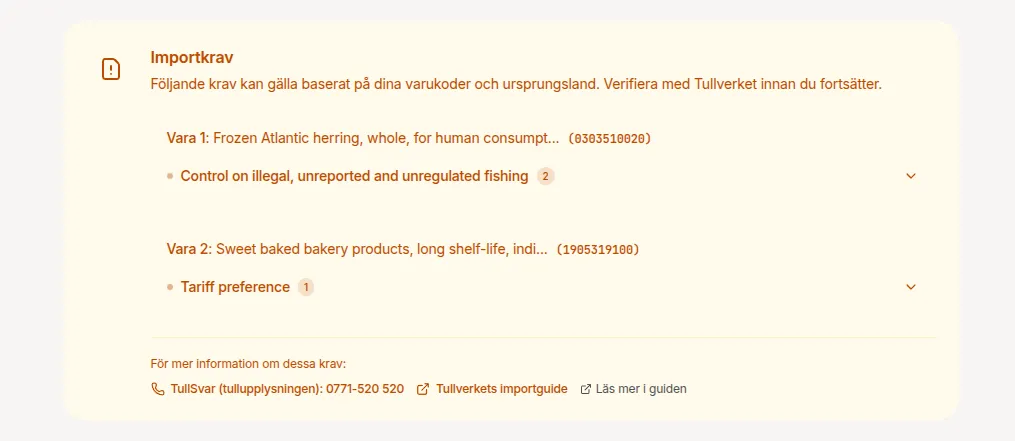
ข้อกำหนดการนำเข้า (แสดงเมื่อมีผลบังคับใช้)
10.1 คำเตือนเกี่ยวกับใบรับรอง
หากสินค้าของคุณต้องใช้ใบรับรองหรือใบอนุญาตพิเศษ (เช่น ใบรับรองสุขอนามัย ใบอนุญาตนำเข้า หรือเครื่องหมาย CE) จะแสดงที่นี่ ข้อกำหนดแต่ละรายการจะระบุประเภทใบรับรอง คำอธิบาย และลิงก์สำหรับข้อมูลเพิ่มเติม ส่วนนี้จะปรากฏเฉพาะเมื่อมีข้อกำหนด
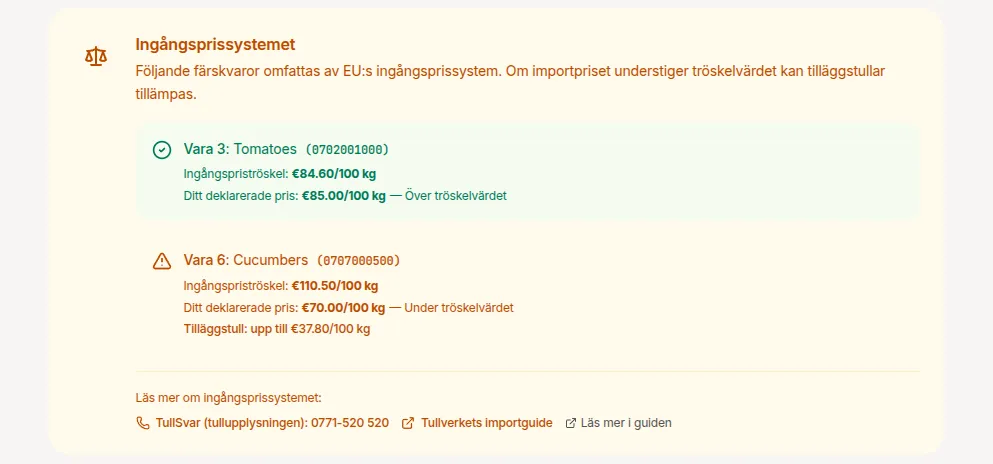
ระบบราคาขาเข้า (แสดงเมื่อมีผลบังคับใช้)
11.1 เกณฑ์ราคา
สำหรับผลิตภัณฑ์ผักและผลไม้บางชนิด สหภาพยุโรปใช้ระบบราคาขาเข้า (Entry Price System) หากสินค้าของคุณอยู่ในขอบเขต คุณจะเห็นมูลค่าเกณฑ์และราคาที่คุณแจ้ง หากราคาต่ำกว่าเกณฑ์ อาจมีอากรเพิ่มเติม ระบบจะแสดงอากรเพิ่มเติมสูงสุดที่เป็นไปได้
ความรับผิดชอบทางกฎหมาย
12.1 การยืนยัน
คุณต้องยืนยันว่าคุณเข้าใจว่าคุณในฐานะผู้นำเข้ามีความรับผิดชอบทางกฎหมายสำหรับข้อมูลในใบขนสินค้า การแนะนำรหัส HS และการคำนวณภาษีเป็นเครื่องมือ — ไม่ใช่คำปรึกษาทางกฎหมาย

ดำเนินการต่อเพื่อดาวน์โหลด
13.1 ตรวจสอบทุกอย่าง
ปุ่ม "ดำเนินการต่อเพื่อดาวน์โหลด" จะเปิดใช้งานเมื่อทุกส่วนได้รับการยืนยันแล้วเท่านั้น หากมีบางอย่างขาดหายไป คุณจะเห็นว่าส่วนใดต้องการความสนใจ ตรวจสอบรายละเอียดทั้งหมดอีกครั้งเป็นครั้งสุดท้าย
ดาวน์โหลด PDF
14.1 ภาษาและบันทึกการตรวจสอบ
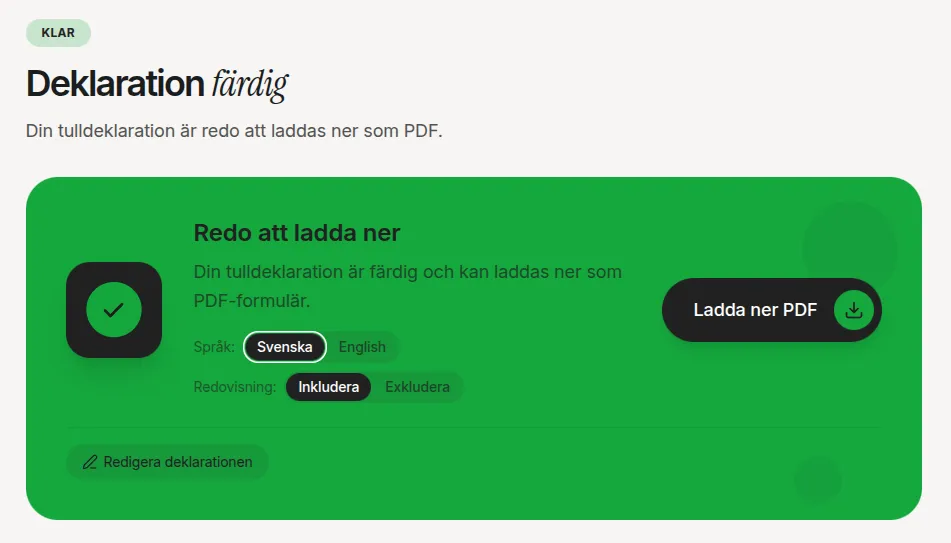
เลือกว่า PDF ควรเป็นภาษาสวีเดนหรือภาษาอังกฤษ คุณยังสามารถเลือกรวมบันทึกการตรวจสอบ — เอกสารที่แสดงคำแนะนำอัตโนมัติทั้งหมด การแก้ไขของคุณ และการอนุมัติ สิ่งนี้มีประโยชน์ทั้งเป็นเอกสารภายในและเพื่อแสดงต่อ Tullverket เมื่อมีการตรวจสอบ หากคุณเลือกรวมบันทึกการตรวจสอบ รหัสอ้างอิงจะถูกเพิ่มในช่องเอกสารเสริมของใบขนสินค้าเพื่อให้ศุลกากรสามารถเชื่อมโยงกับกรณีของคุณได้
14.2 การชำระเงิน
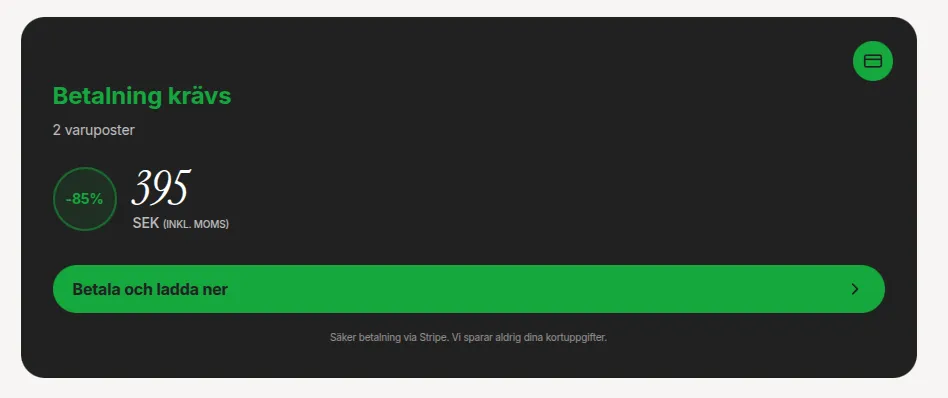
หากคุณไม่มีสมาชิกที่ใช้งานอยู่หรือเครดิตเพียงพอ คุณสามารถชำระเงินต่อใบขนสินค้าได้ ราคาจะแสดงอย่างชัดเจนรวมภาษีมูลค่าเพิ่ม การชำระเงินดำเนินการอย่างปลอดภัยผ่าน Stripe — เราไม่เคยจัดการข้อมูลบัตรของคุณ
ขั้นตอนถัดไป
15.1 หลังดาวน์โหลด
ตอนนี้คุณมี PDF ที่กรอกข้อมูลแล้ว นี่คือสิ่งที่ต้องทำต่อไป:
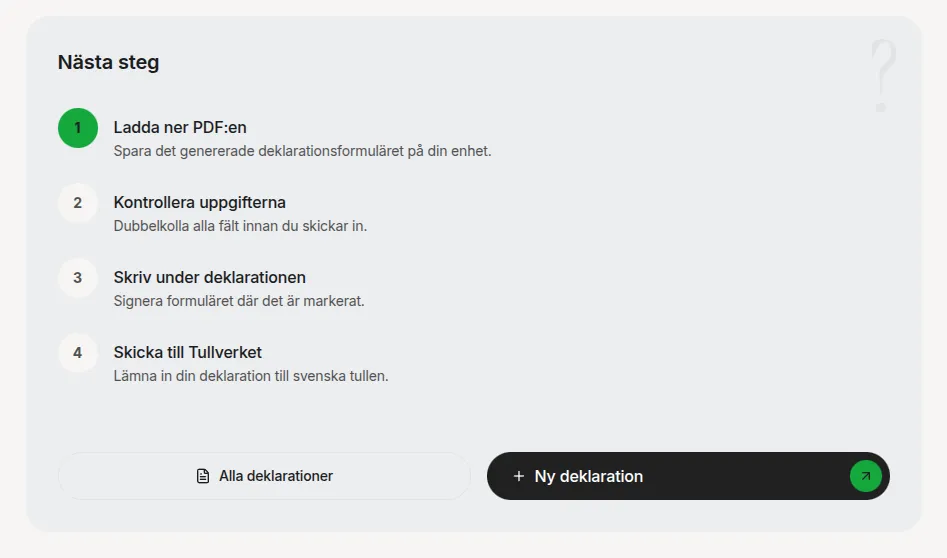
- ดาวน์โหลด PDF ลงในคอมพิวเตอร์ของคุณ
- ตรวจสอบข้อมูลในเอกสารเป็นครั้งสุดท้าย
- ลงนามในใบขนสินค้า (ลายเซ็นทางกายภาพหรือดิจิทัล)
- ยื่นใบขนสินค้าต่อ Tullverket — ผ่านบริการอิเล็กทรอนิกส์ของ Tullverket หรือในรูปแบบกระดาษ
พร้อมที่จะ เริ่มต้นแล้วหรือยัง?
สร้างใบขนศุลกากรฉบับแรกของคุณในเวลาไม่ถึง 15 นาที ไม่จำเป็นต้องลงทะเบียนเพื่อทดลองใช้