Step by
step.
A complete walkthrough of the entire flow — from invoice to finished PDF. No prior knowledge required.
Guide
Overview
Tullklar helps you create an import declaration (customs declaration) for goods you import to Sweden from countries outside the EU. You upload your invoice, the system reads it, suggests HS codes and calculates duty and VAT. Then you get a pre-filled PDF to submit to Tullverket.
All you need is an invoice or trade document from your supplier. The service handles the rest — but you approve every step before we proceed.
Time required
5–15 minutes depending on number of goods items
You need
An invoice (PDF, image or text)
Result
A pre-filled customs declaration as PDF
Upload invoice
1.1 Start on the homepage
On the homepage you'll find a large upload area (dropzone) and a **Upload invoice & start** button. This is the easiest way to begin — drag your invoice to the dropzone or click the button.
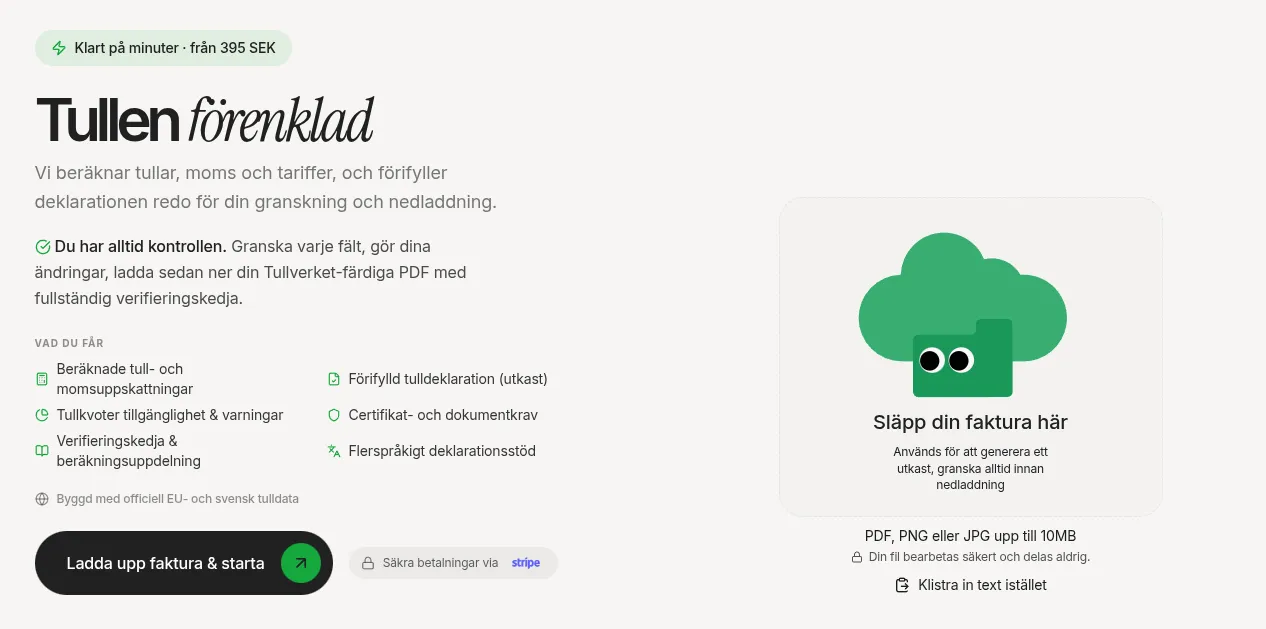
1.2 Alternative: via the button
You can also click the **Upload invoice & start** button on the left side of the homepage. This takes you directly to the upload view.
1.3 Drag and drop
Drag the file from your computer to the dropzone. When you hold the file over the area, it glows green to show it's ready to receive the file.
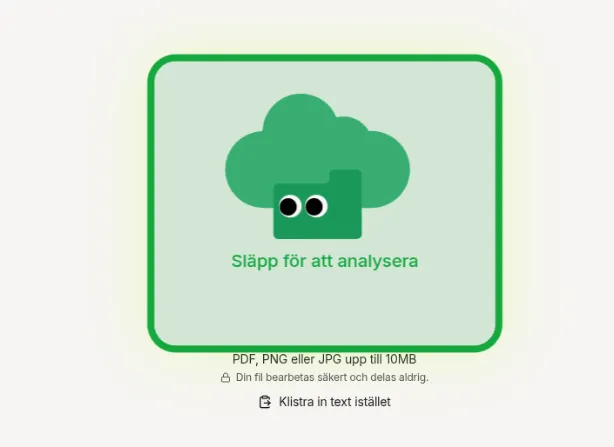
1.4 Click to choose file
Prefer clicking? Press the dropzone and a file picker opens where you can browse your documents.
1.5 Paste text
Have invoice data as text (e.g., copied from an email)? Click "Paste text instead" and a text area opens where you can paste the content.
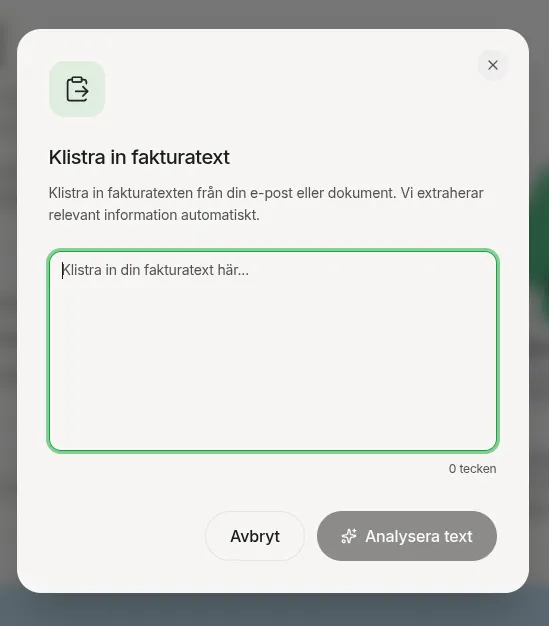
1.6 File formats
The service supports PDF, PNG, JPG, and TXT. Maximum file size is 10 MB. Make sure the invoice is legible — blurry images give worse results.
Automatic analysis
2.1 Three phases
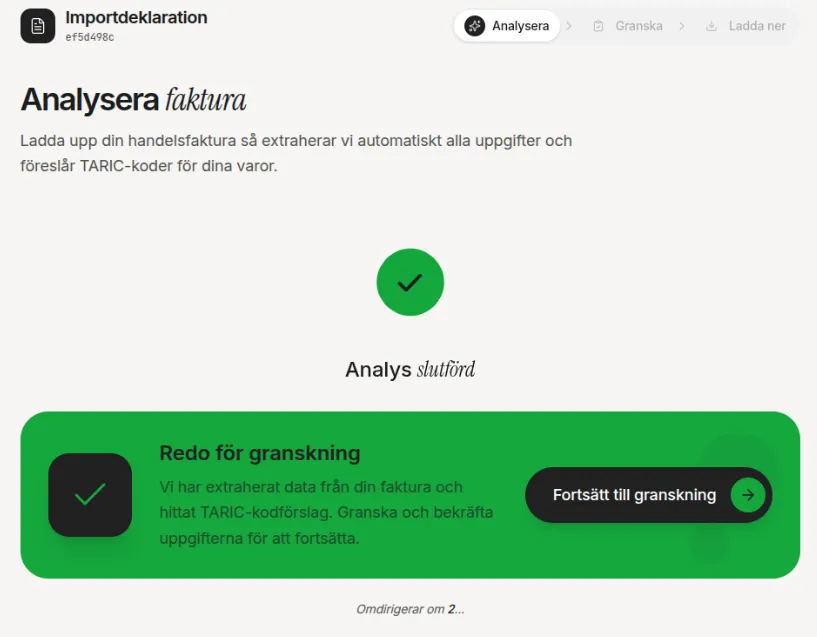
The analysis runs in three steps: first the invoice is uploaded, then parties and goods items are automatically extracted, and finally HS codes (commodity codes) are suggested for each item. You see a clear indicator showing where you are in the process.
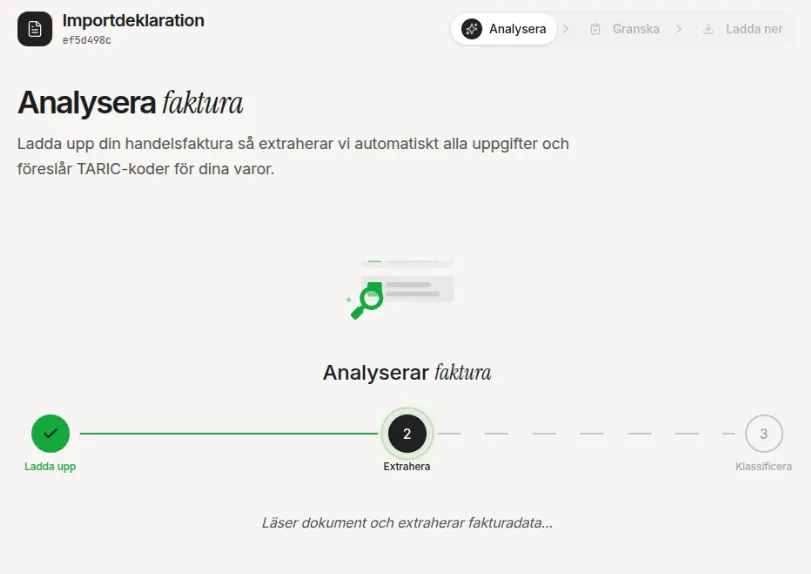
2.2 When the analysis is complete
When all three phases are done, you are automatically directed to the review page. If you left the page during analysis, you can always go back — your declaration is saved.
Review parties
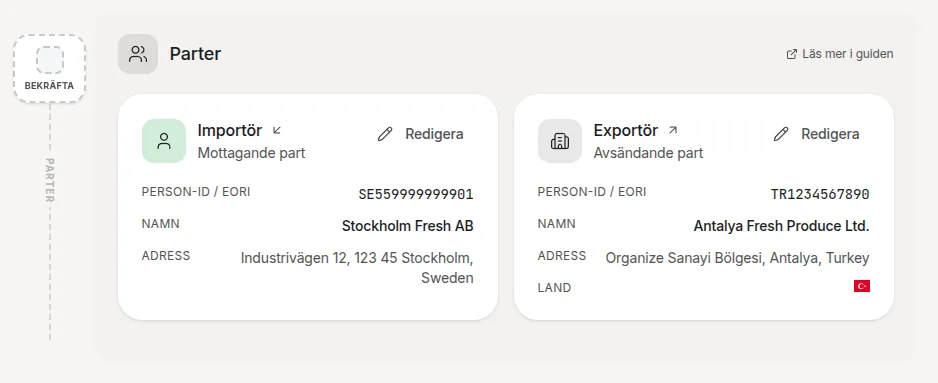
3.1 Importer and exporter
The system has identified the importer (recipient in Sweden) and exporter (sender abroad) from your invoice. You see them as two cards with name, address, organisation number/EORI, and contact details. At the top you see a progress indicator showing which steps you've completed.

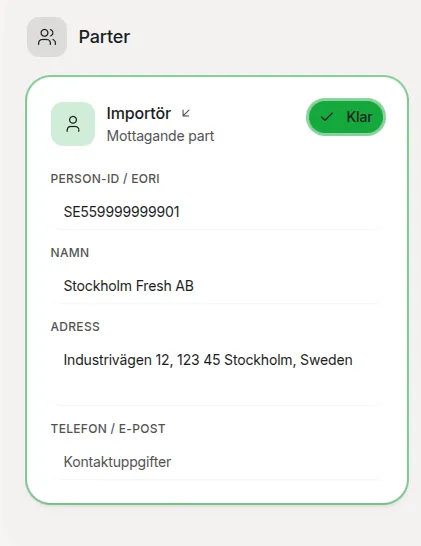
3.2 Edit details
Click **Edit** on any card to change the details. You can correct name, address, organisation number, country, and contact information. The automatic extraction does its best, but you are responsible for ensuring the details are correct.
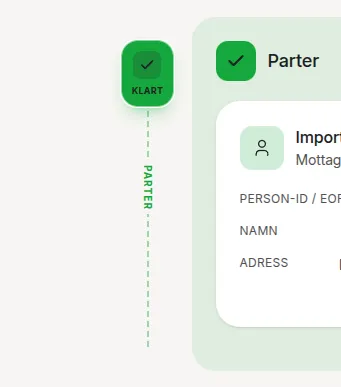
3.3 Confirm
Next to each section there is a floating confirmation indicator. Tick it to approve the section and proceed. It signals that you have reviewed and approved the party details.
Transport mode (optional)
4.1 Choose transport mode
Select how the goods were shipped to Sweden: sea, rail, road, air, or post. If the system found clues in the invoice (e.g., flight or container numbers), the right option is pre-selected. You can change or skip this step.
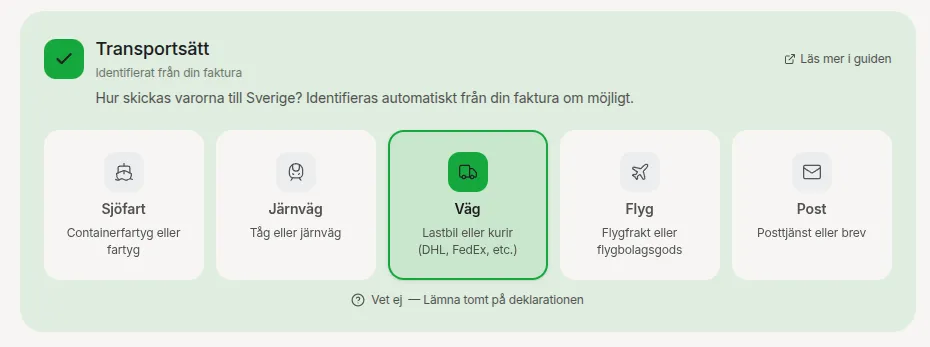
4.2 Vessel / vehicle identity (optional)
If you know the vessel name, flight number, or other transport identity, you can enter it here. This field is optional — if the system found it in the invoice, it's already filled in.
Goods items
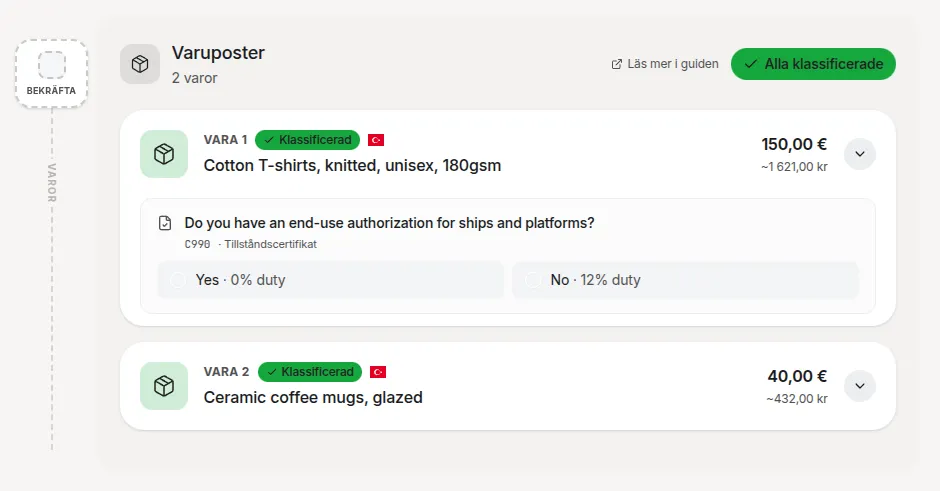
5.1 Goods card
Each goods item from the invoice is shown as a card. In collapsed mode you see the description, value, weight, country of origin, and the suggested HS code.
5.2 Expand card
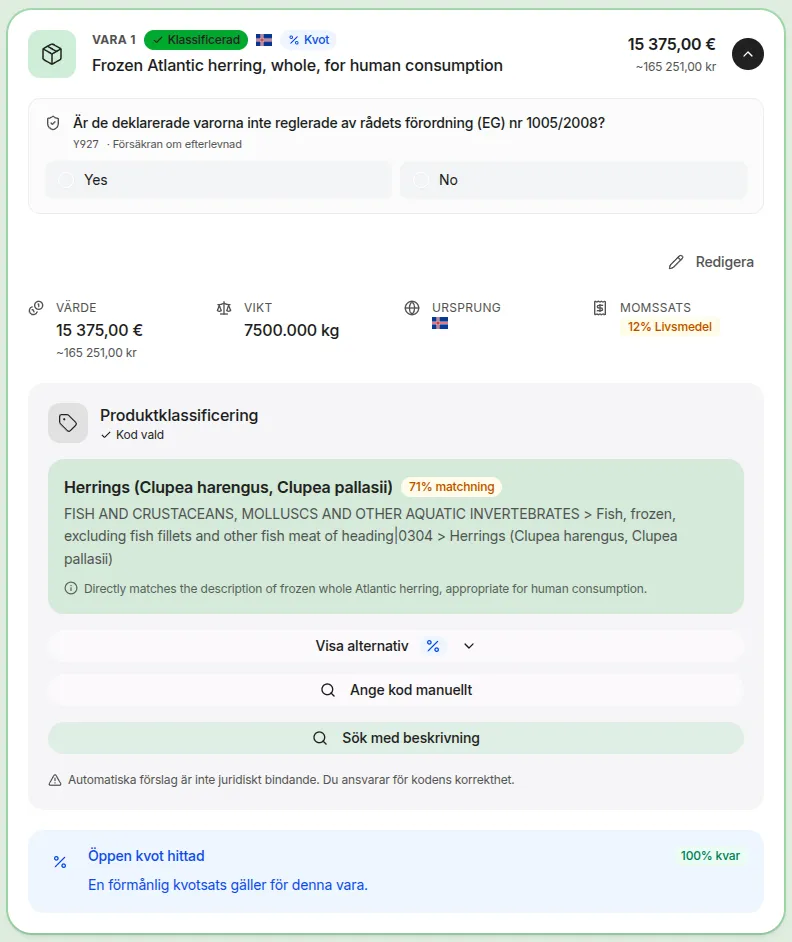
Click the card to expand it. Now you see all details including the suggested HS code with description, duty rate, and any conditions.
5.3 Edit goods info
You can change the goods description, value, currency, net weight, and country of origin. Click **Edit** and then **Done** when you're satisfied.
5.4 HS code suggestions
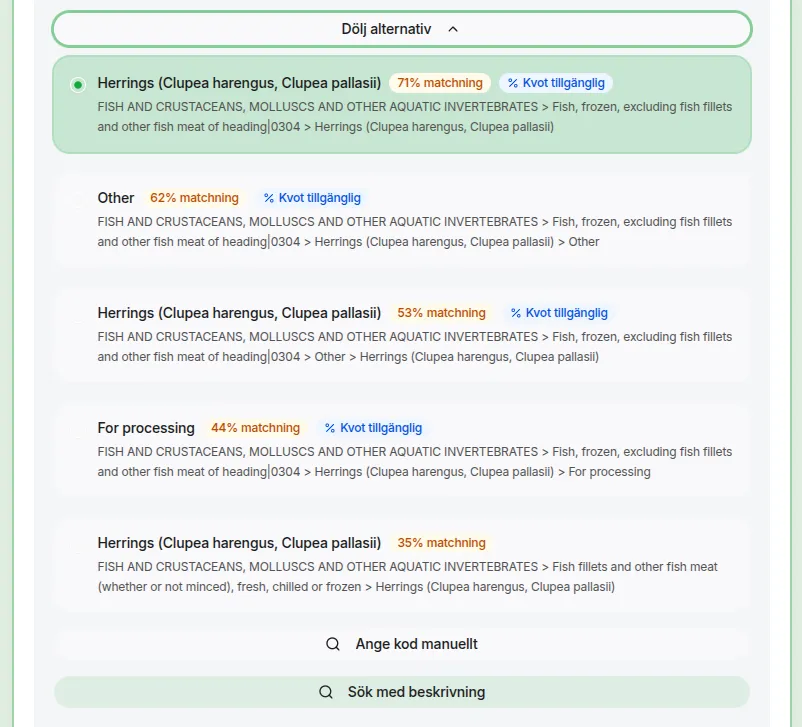
The system suggests a primary HS code and up to three alternatives. Each suggestion shows the code, a description, and a confidence indicator. Click **Show alternatives** to see all suggestions and choose the one that best fits your goods.
5.5 Enter code manually
Already know the right HS code? Click **Enter manually** and type the code directly. The system verifies that the code is valid.

5.6 Free text search
With an active subscription, you can search by goods description in free text. The system matches your description against the entire commodity code database and returns the best matching codes. Without a subscription you see a prompt to upgrade.

5.7 Tariff quotas
If there is an open tariff quota for your goods and country of origin, a quota indicator is shown on the goods card. A quota can give you a lower duty rate — the system takes this into account in the tax calculation.

5.8 Condition questions
Some HS codes have conditions — for example, whether you hold a certain permit or whether the goods meet specific criteria. You get a simple yes/no question. Your answer determines which duties and requirements apply.

5.9 Confirm goods
Once you've reviewed all goods items, tick the floating confirmation indicator on the left. Taxes and fees are then calculated automatically.
5.10 Meursing composition
For certain agricultural products (e.g. chapters 17–21), you need to enter the product's composition by weight percentage: starch/glucose, milk fat, sugar, and milk proteins. The system uses the EU's Meursing table to determine the agricultural component of the duty — an additional duty based on the product's contents.
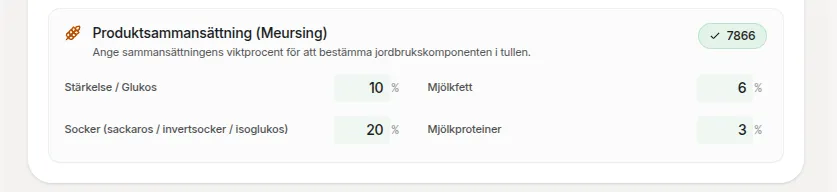
5.11 Additional code
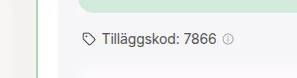
Based on the composition, a four-digit additional code is calculated automatically. The code is shown on the goods card and is required in the customs declaration to determine the correct agricultural duty rate.
5.12 Anti-dumping duty
Some products from specific countries have anti-dumping duties that vary by exporting company. When detected, a selector appears letting you choose the company code — each with its own duty rate. If unsure, the default "Other" (B999) rate applies.

5.13 Transaction type
Select the type of transaction. Most common is "1 — Purchase" for a normal purchase. Other options include returns, gifts, repairs, etc. This affects the "Nature of transaction" field on the customs declaration.
VAT registration
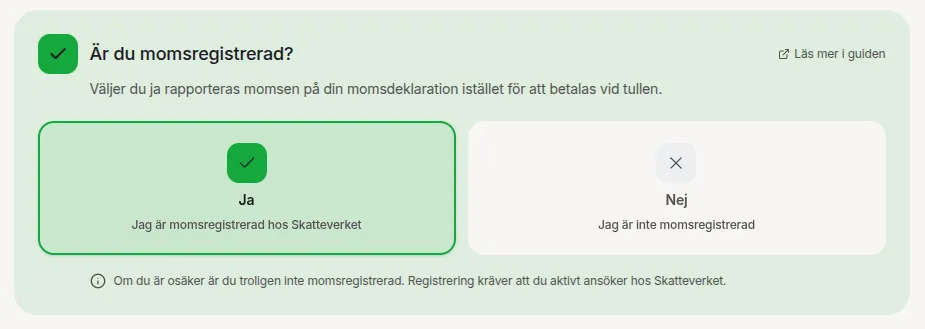
6.1 Yes or no
Indicate whether you are VAT registered in Sweden. This affects how VAT is handled in the declaration. If you are VAT registered, import VAT is reported in your VAT return instead of being paid directly to Tullverket.
Tax calculation
7.1 Breakdown per item
Each goods item is shown with calculated duty, VAT, and total amount. You see the duty rate, customs value, and VAT rate. If a quota was applied, the saved amount is shown.
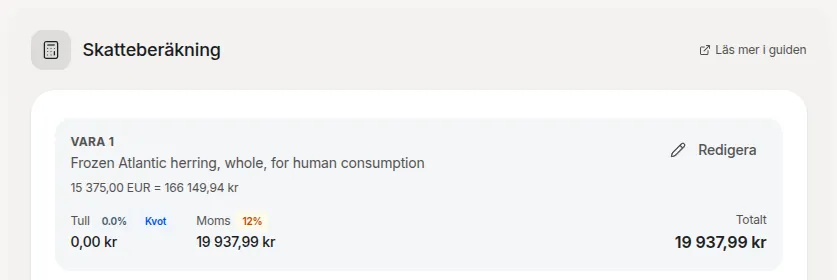
7.2 Total summary
At the bottom you see a summary: total duty, total VAT, customs value, and total to pay. If you are VAT registered, VAT is shown separately as "reported in VAT return".
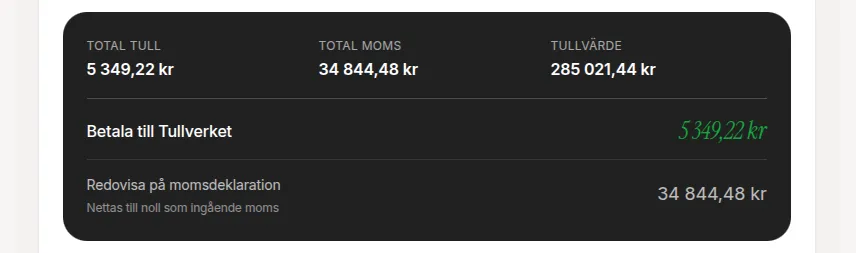
7.3 Manual adjustment, quota savings, de minimis
You can manually adjust duty rates and VAT rates. Any quota savings are shown clearly. If the duty is below 150 SEK (de minimis), Tullverket may choose not to collect it — this is shown as an info box.
National charges (excise duties)
8.1 Energy tax, carbon dioxide tax, etc.
Certain goods — especially fuels and oil products — are subject to Swedish excise duties on top of customs duty and VAT. These are declared on the customs form but paid separately to Skatteverket. When excise duties apply, they appear in the tax breakdown with a colour-coded badge (e.g., 362 for energy tax, 393 for carbon dioxide tax). Hover over the badge to see which tax it represents.

Payment method
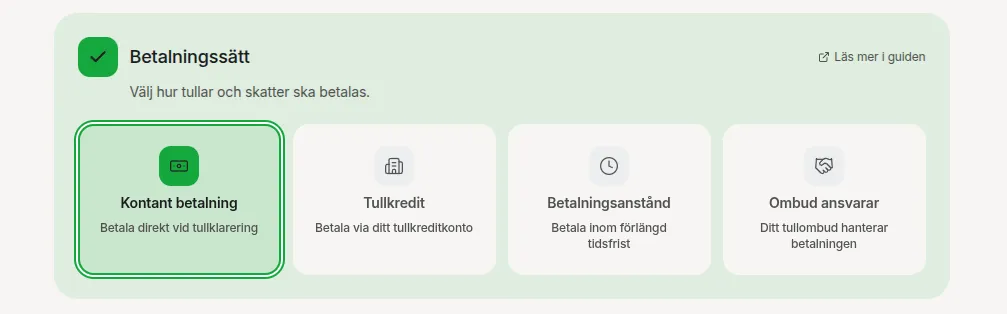
9.1 Two options
Choose how to pay duty and taxes: cash (A) or deferred payment (E). Cash payment is the default. Deferred payment requires a permit from Tullverket.
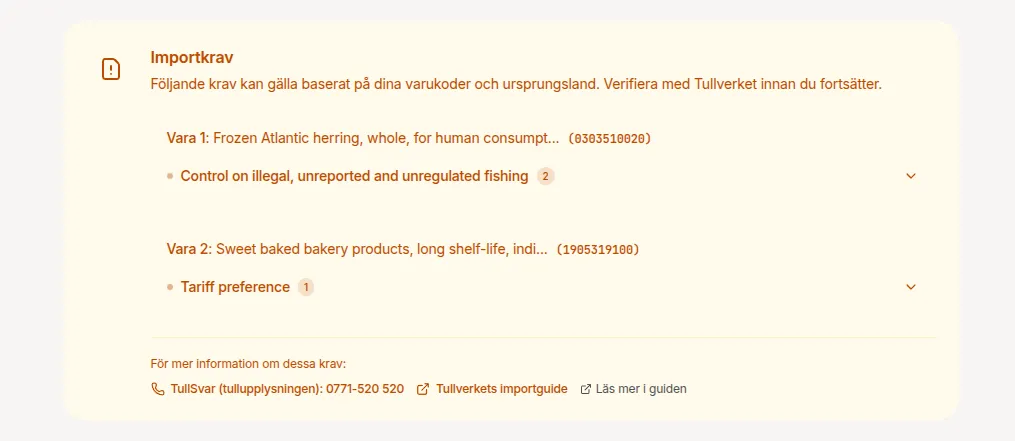
Import requirements (shown when applicable)
10.1 Certificate warnings
If your goods require special certificates or permits (e.g., health certificates, import licences, or CE marking), they are shown here. Each requirement lists the certificate type, description, and a link for more information. This section only appears when there are requirements.
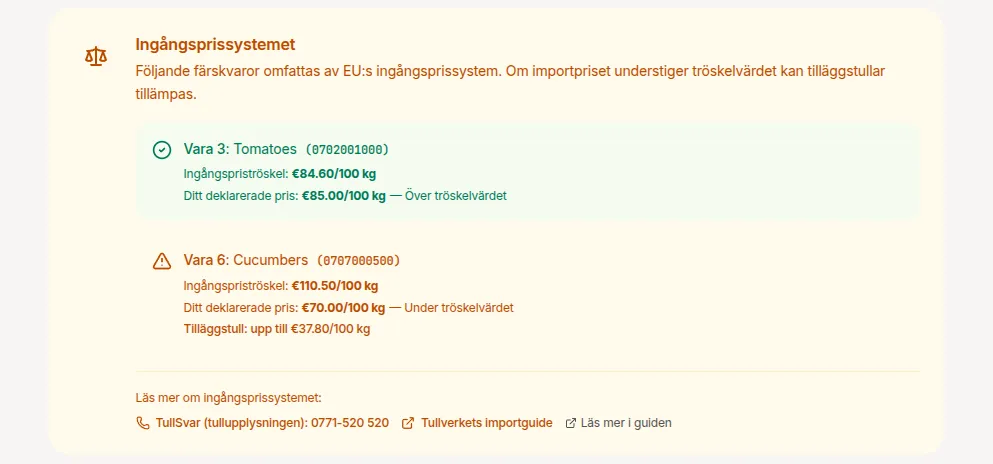
Entry price system (shown when applicable)
11.1 Thresholds
For certain fruit and vegetable products, the EU applies an Entry Price System. If your goods are covered, you see the threshold value and your declared price. If the price is below the threshold, additional duty may apply. The system shows the maximum possible additional duty.
Legal responsibility
12.1 Confirmation
You must confirm that you understand that you as the importer bear the legal responsibility for the information in the declaration. HS code suggestions and tax calculations are tools — not legal advice.

Continue to download
13.1 Check everything
The "Continue to download" button is only activated when all sections are confirmed. If something is missing, you can see which sections need attention. Double-check all details one last time.
Download PDF
14.1 Language and verification trail
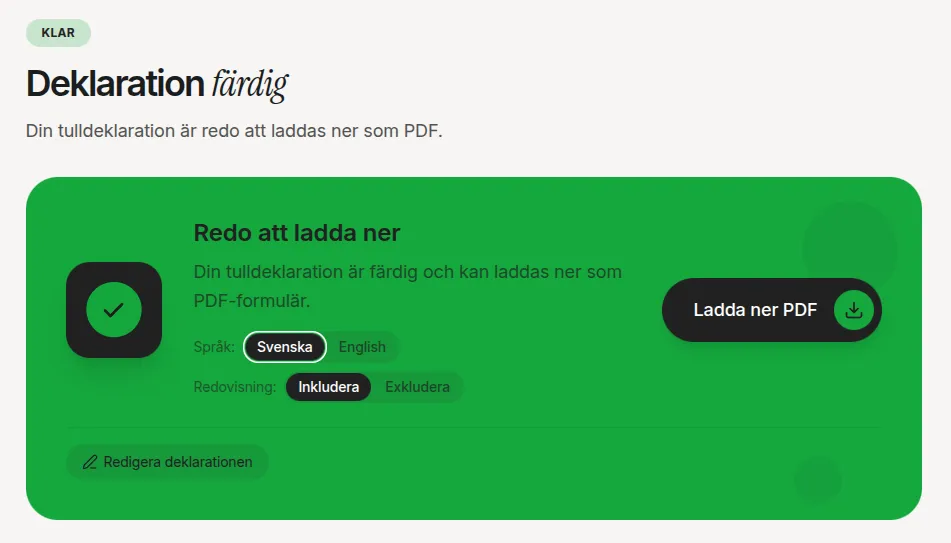
Choose whether the PDF should be in Swedish or English. You can also choose to include a verification trail — a document showing all automatic suggestions, your changes, and approvals. This is useful both as internal documentation and for showing Tullverket during an inspection. If you choose to include the verification trail, a reference code is added to the declaration's supplementary documents field so customs can link it to your case.
14.2 Payment
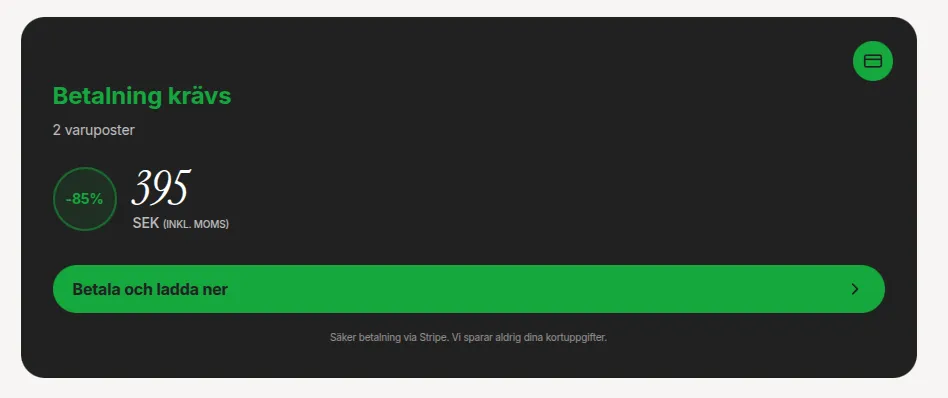
If you don't have an active subscription or sufficient credits, you can pay per declaration. The price is shown clearly including VAT. Payment is processed securely through Stripe — we never handle your card details.
Next steps
15.1 After download
You now have a pre-filled PDF. Here's what to do next:
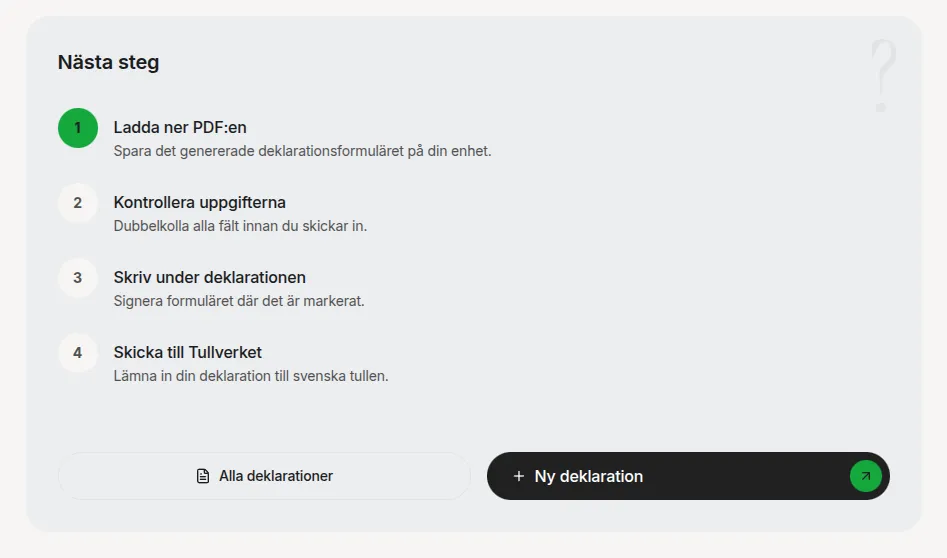
- Download the PDF to your computer.
- Review the information in the document one last time.
- Sign the declaration (physical or digital signature).
- Submit the declaration to Tullverket — either via Tullverket's e-service or in paper form.
Ready to start?
Create your first customs declaration in under 15 minutes. No registration required to try.